← Back to all videos
I Never Leave My Code Editor Anymore
Hypertask Marketing · HVID-14
Thumbnails
Title Options
- I Never Leave My Code Editor Anymore (TOP PICK)
- Claude Can Manage Your Project Board Now
- The MCP Integration Nobody's Talking About
Thumbnail Concepts
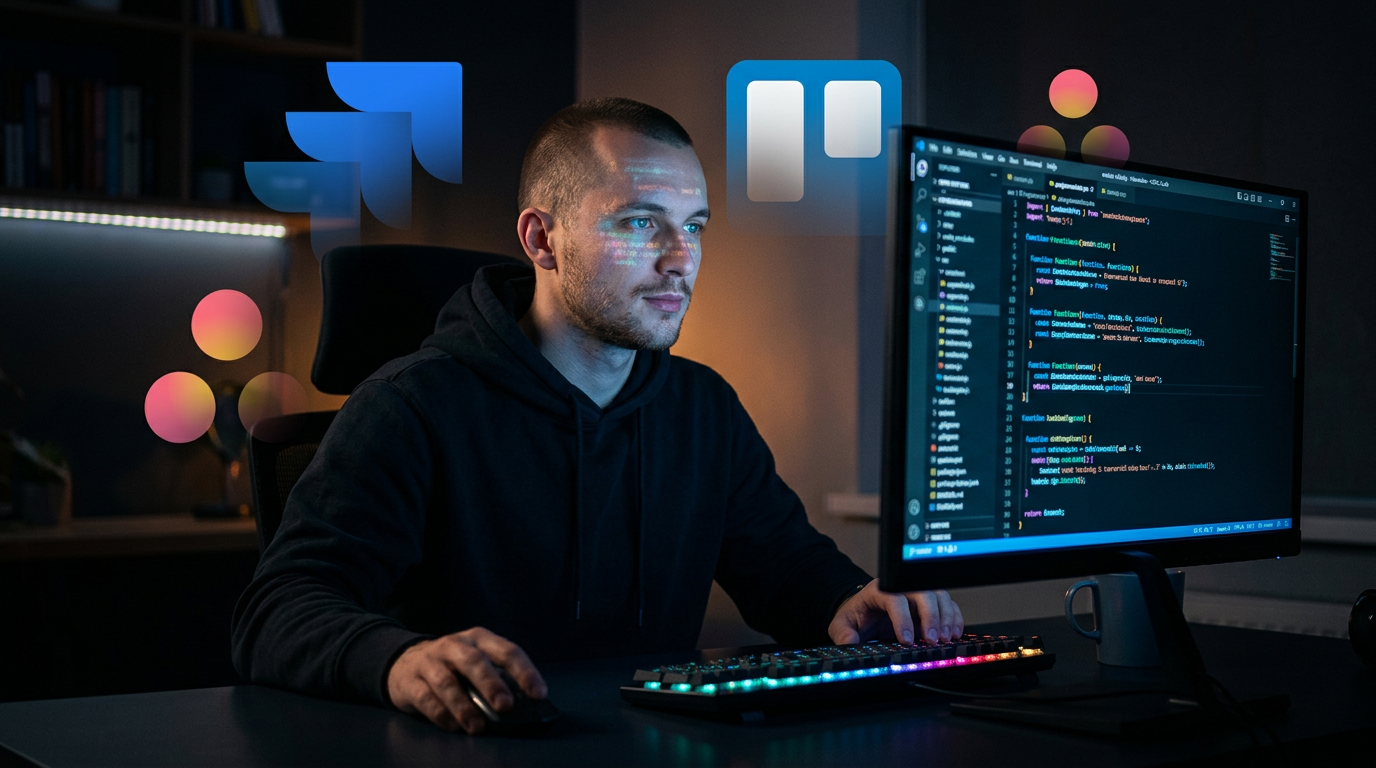
A — Primary
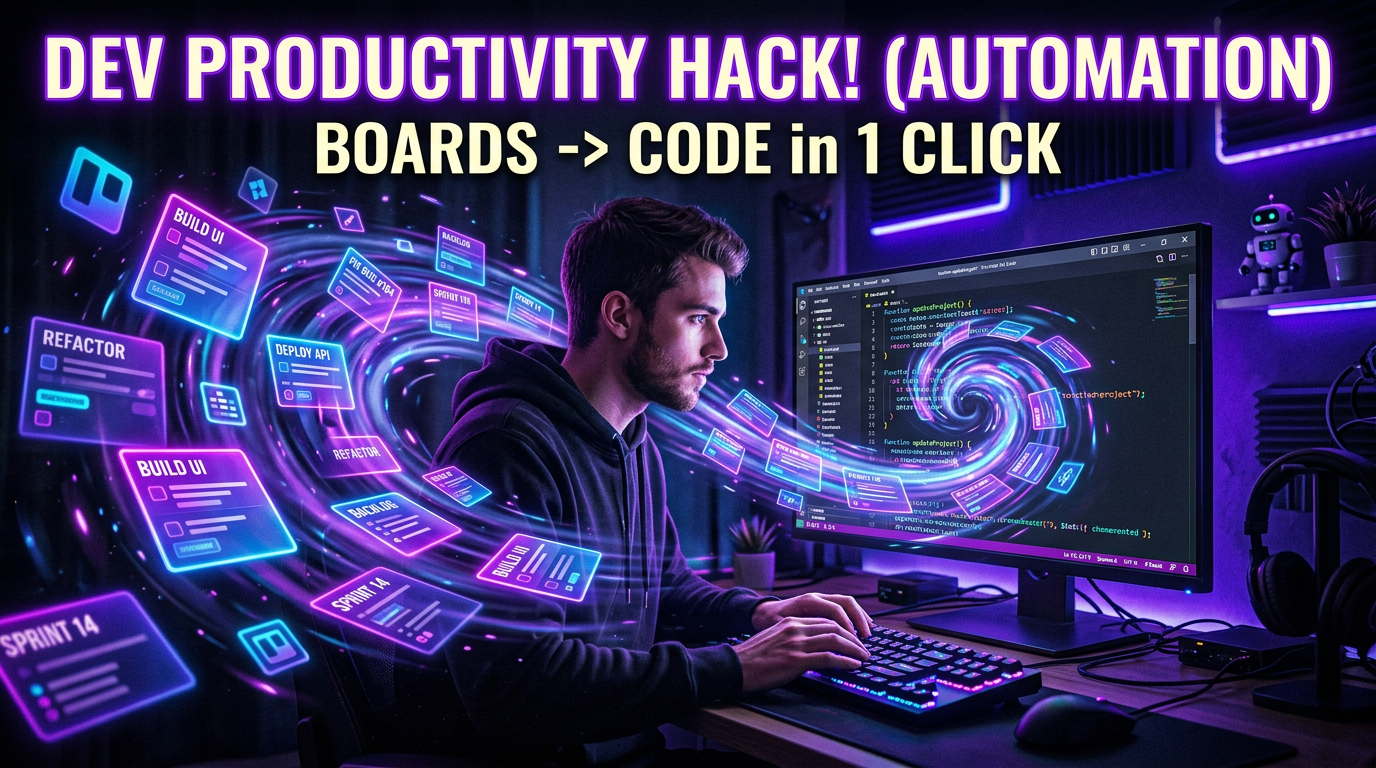
You deeply focused in code editor, zen-like calm. Ghosted PM tool icons fading in background. Dark editor theme with syntax-highlighting accents.
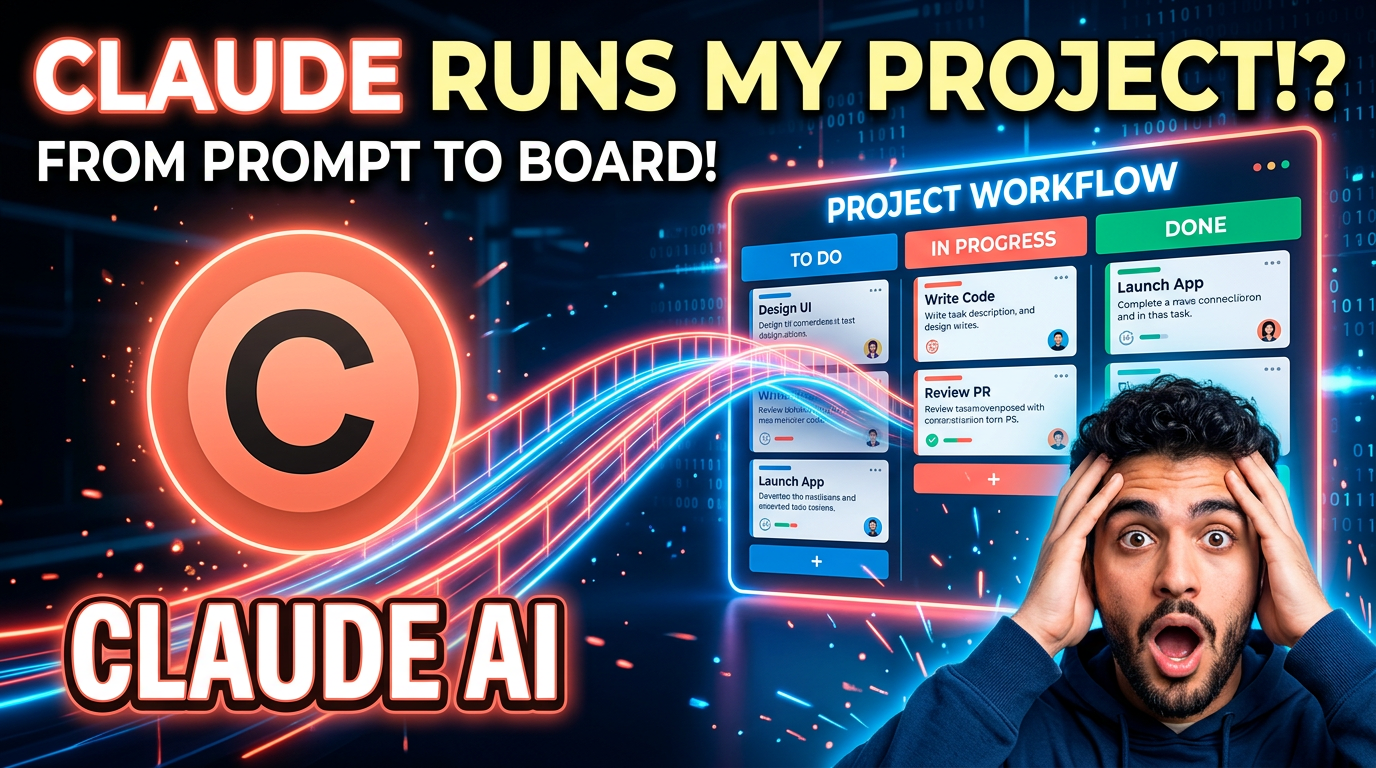
B — Claude Branding
Claude logo + Kanban board connected by glowing bridge. Your "mind blown" face. Coral/blue palette.
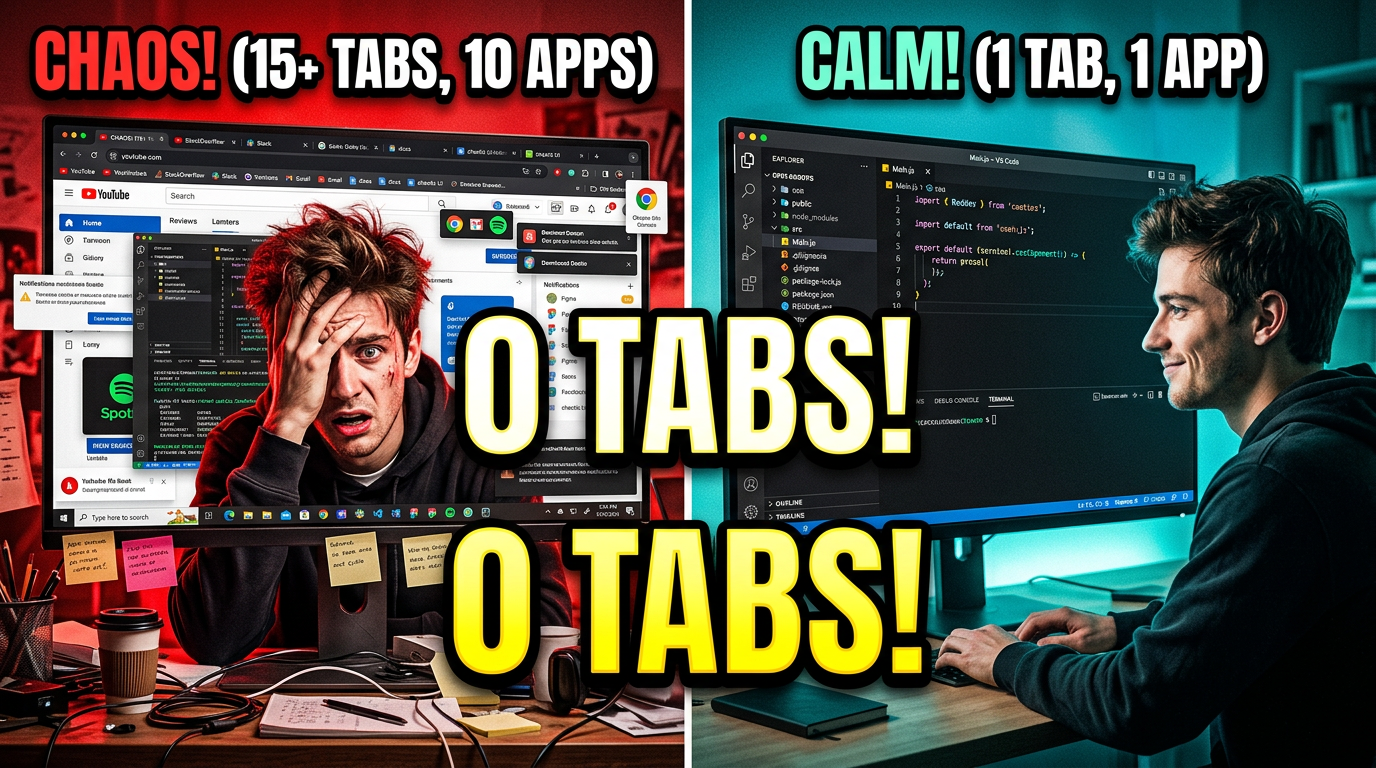
C — Before/After
Split: chaotic 15 tabs (red tint) vs clean VS Code only (blue/green tint). Text: "0 tabs".
Tags
MCP
VS Code
Hypertask
Claude
Developer Tools
Video Overview
- Format: Developer workflow showcase / "day in the life" style
- Target length: ~6:30
- Tone: Developer showing seamless workflow, "let me show you how I work now"
- Audience: Developers, technical PMs, startup CTOs
- Story arc: Pain (context switching hell) → Discovery (MCP setup) → Flow (demo) → Proof (results)
Script
COLD OPEN (0:00–0:25)
[SPLIT SCREEN: Left = chaotic desktop with 12 browser tabs, Slack, Jira, calendar. Right = clean VS Code with one terminal.]
"This used to be me. Now it's this."
[Right side: type a command in terminal, task gets created, ticket moves on board — all from the editor]
"Let me show you how."
THE PAIN (0:25–1:00)
"If you're a developer, you know this dance."
[QUICK CUTS — dramatized but real:]
"Write code. Alt-tab. Open Jira. Find the ticket. Update status. Alt-tab back. Where was I? Oh right, line 247..."
[Frustrated face]
"I was spending more time MANAGING my work than DOING my work. So we built something."
Pacing note: Make it VISUAL and FAST. Quick cuts, sound effects on each tab switch, counter overlay: "context switches: 1... 2... 3... 47..."
THE SETUP (1:00–2:00)
"This is Hypertask's MCP integration. MCP is how AI tools like Claude connect to external services."
[SCREEN: Hypertask MCP settings page]
"See these buttons? One click for Cursor. One click for VS Code. One click for Claude Desktop."
[Click it. Show connection establish.]
"That's it. Claude can now see my entire project board, create tasks, move tickets, manage my inbox — all from right here."
DEMO FLOW (2:00–3:30)
"Let me show you a real coding session."
[SCREEN: Writing code in Cursor/VS Code]
"I just finished this feature. Normally I'd alt-tab, find the ticket, drag it to Done, maybe leave a comment..."
[IN TERMINAL: "Move HTPR-3412 to Done and comment 'Feature implemented, ready for QA'"]
[Show it happen. Show the board update.]
"Five seconds. Never left my editor."
[Continue coding]
"Oh, I need to create a follow-up task for the edge case I found..."
[IN TERMINAL: "Create task 'Handle edge case for empty inbox state', assign to Abdul, priority medium, due next Wednesday"]
"Done. Still in my editor. Still in flow."
Pacing: These should feel FAST and seamless. Quick typing, instant results, back to code. The speed IS the selling point.
DOPAMINE POCKET (3:30–4:00)
[MEME FORMAT: Browser tab bar before (endless tabs) vs. after (just VS Code)]
"My RAM thanks me."
[Or: Show Task Manager — memory usage dropping. Played for comedy.]
ADVANCED FEATURES (4:00–5:30)
"But it goes deeper."
[FROM IDE:]
"Show me my inbox."
[AI lists inbox items]
"Archive everything from last week that's resolved."
[Done]
"Move all the QA-approved tickets from Staging to Done across ALL boards."
[Done]
"What's on my calendar for tomorrow?"
[Shows calendar]
"And if I DO open the calendar view, watch this—"
[SHOW: Keyboard shortcut jumping between calendar views, full filter modal, following filter]
"Full keyboard navigation. Never touch the mouse."
CLOSE (5:30–6:30)
"I tracked my context switches for a full day using the old workflow versus this one."
[GRAPHIC: "Before: 73 context switches. After: 11."]
"If you're a developer who's tired of tab-dancing between your code and your project board — link below. The MCP connection takes literally 10 seconds to set up."
[End on you, back in the editor, typing. Cut to black mid-keystroke. Still working. No outro.]
Shot List
| # | Type | Description | Notes |
|---|
| 1 | Split screen comp | Chaotic desktop vs. clean editor | Cold open, post-production |
| 2 | Screen recording | Alt-tab chaos montage | Dramatized pain point |
| 3 | Screen recording | MCP settings page, one-click connect | Satisfying setup moment |
| 4 | Screen recording | Full coding → task management flow | Core demo, keep seamless |
| 5 | Face cam | Reactions, transitions between sections | Energy and personality |
| 6 | Screen recording | Inbox, cross-board, calendar features | Advanced demo |
| 7 | Graphic/animation | Context switch counter, before/after | Simple, bold numbers |
| 8 | Screen recording | Calendar keyboard navigation | Quick showcase |
| 9 | Close-up B-roll | Hands typing, monitor glow, desk | Cinematic detail |
Editing Notes
Pacing
- Even FASTER than Video 1 — developers expect dense content
- Cut every 2-4 seconds during demos
- Speed up any loading/waiting by 2-4x
Energy Variation
- Pain section: Chaotic, fast cuts, annoying tab-switch sounds (intentional)
- Setup: Calm, clean, satisfying
- Demo flow: Smooth, rhythmic, "flow state" music
- Advanced: Building energy, faster cuts
Sound Design
- Satisfying "click" on one-click connect
- Mechanical keyboard ASMR during coding sections
- Subtle "success" chime when tasks complete
- Annoying "whoosh" on each tab switch during pain section (on purpose)
- Lo-fi or electronic background music — developer aesthetic
- 2-3 track changes matching energy shifts
Features Showcased
- HTPR-3546: One-click IDE connect buttons (MCP page)
- HTPR-3625: MCP inbox support
- HTPR-3590: Move tickets between boards via MCP
- HTPR-3646: MCP due date support
- HTPR-3517: Calendar keyboard shortcuts
- HTPR-3611: Full filter modal on calendar view
- HTPR-3581: Following task filter on calendar
Recording Checklist
- Set up screen recording software (OBS or similar)
- Use real coding session, not staged demo
- Record face cam simultaneously for reaction cuts
- Capture the one-click MCP connect moment cleanly
- Time yourself: old workflow vs. new workflow (real data for the graphic)
- Record 2-3 cold open versions
- Get close-up B-roll of keyboard/desk for cinematic cuts